

Set up Track Them All
-
Upload the plugin on the Plugins screen and activate it.
-
Open Settings › Track Them All.
-
On the Platforms tab, turn on a platform and paste its IDs and token. Each field says where in the platform to find them. Save.
-
Click Test connection to check the server-side credentials against the platform’s live API. Save your changes before testing.
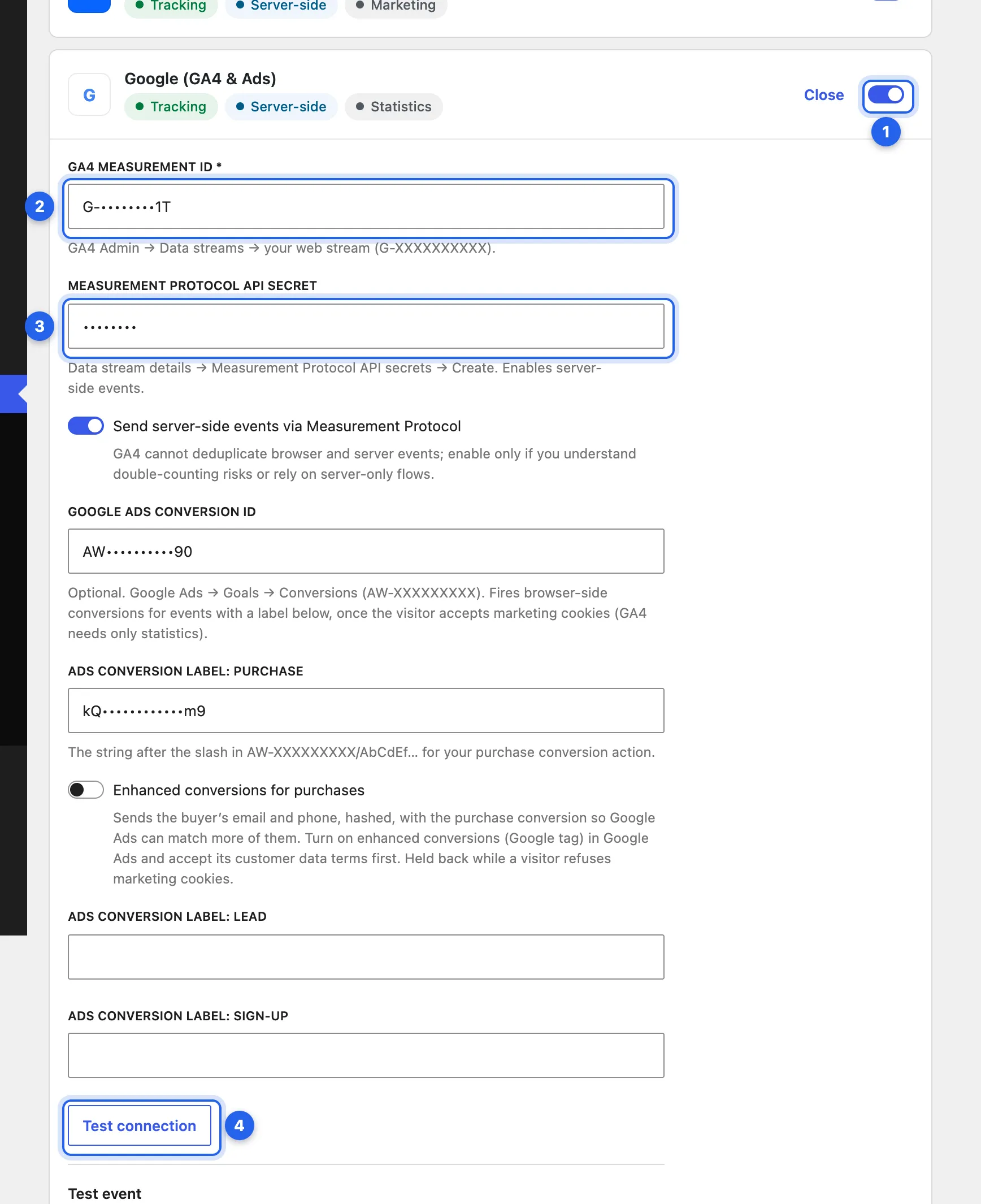
1 The platform’s switch. 2 Its ID. 3 Its server-side secret or token. 4 Test connection. IDs and secrets are masked in this screenshot.
-
Log out, or use a private window: administrators aren’t tracked by default. Place a test order or submit a form, wait a minute, then open the Activity log tab: every server-side send is listed with the platform’s answer. Page views and cart events go from the browser only, so they don’t appear there. To see browser events too, turn on Debug mode under Events & privacy, and they appear in your browser’s console.
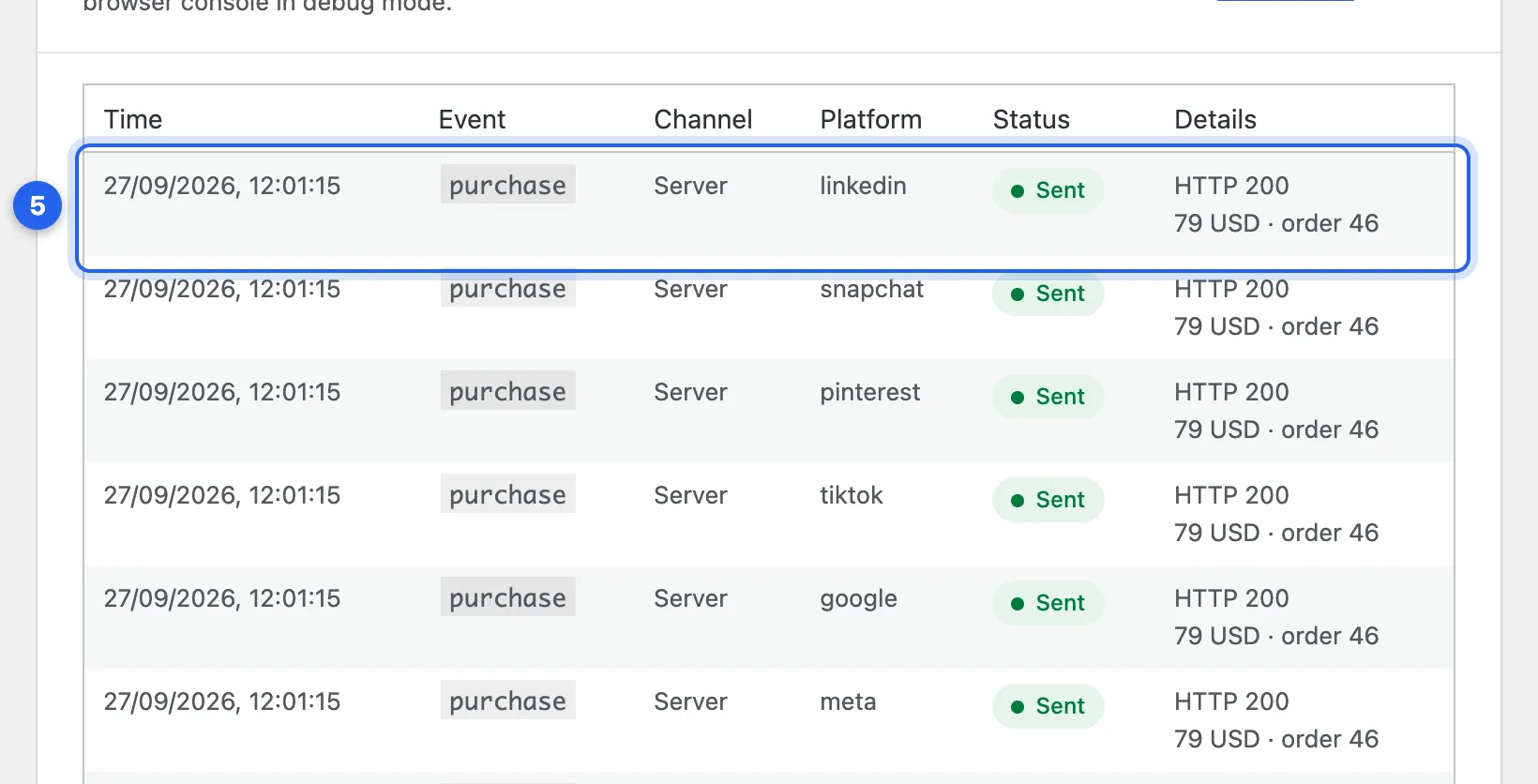
5 Each server-side send, with the platform’s answer.
Enter your license key
Section titled “Enter your license key”Under Settings › Track Them All › License. The Plugins screen’s Enter license key link opens it. See Activate a key.
Keep tokens safe when you rotate salts
Section titled “Keep tokens safe when you rotate salts”Access tokens are stored encrypted. By default the encryption key comes from LOGGED_IN_KEY and LOGGED_IN_SALT, so changing those makes stored tokens unreadable. To avoid that, set keys of your own in wp-config.php, before you enter tokens. If you add them later, enter your tokens again:
define( 'ZTTA_ENCRYPTION_KEY', 'random-64-char-string' );define( 'ZTTA_ENCRYPTION_SALT', 'another-random-64-char-string' );Site Health warns when stored API tokens can no longer be read.
Checked against Track Them All 1.0.5 on main, 19 October 2026.